An OBJ file (.obj) is one of the most widely used 3D formats in computer graphics. Created in the 1980s by Wavefront Technologies, OBJ has spent decades as the universal exchange standard for static 3D geometry.
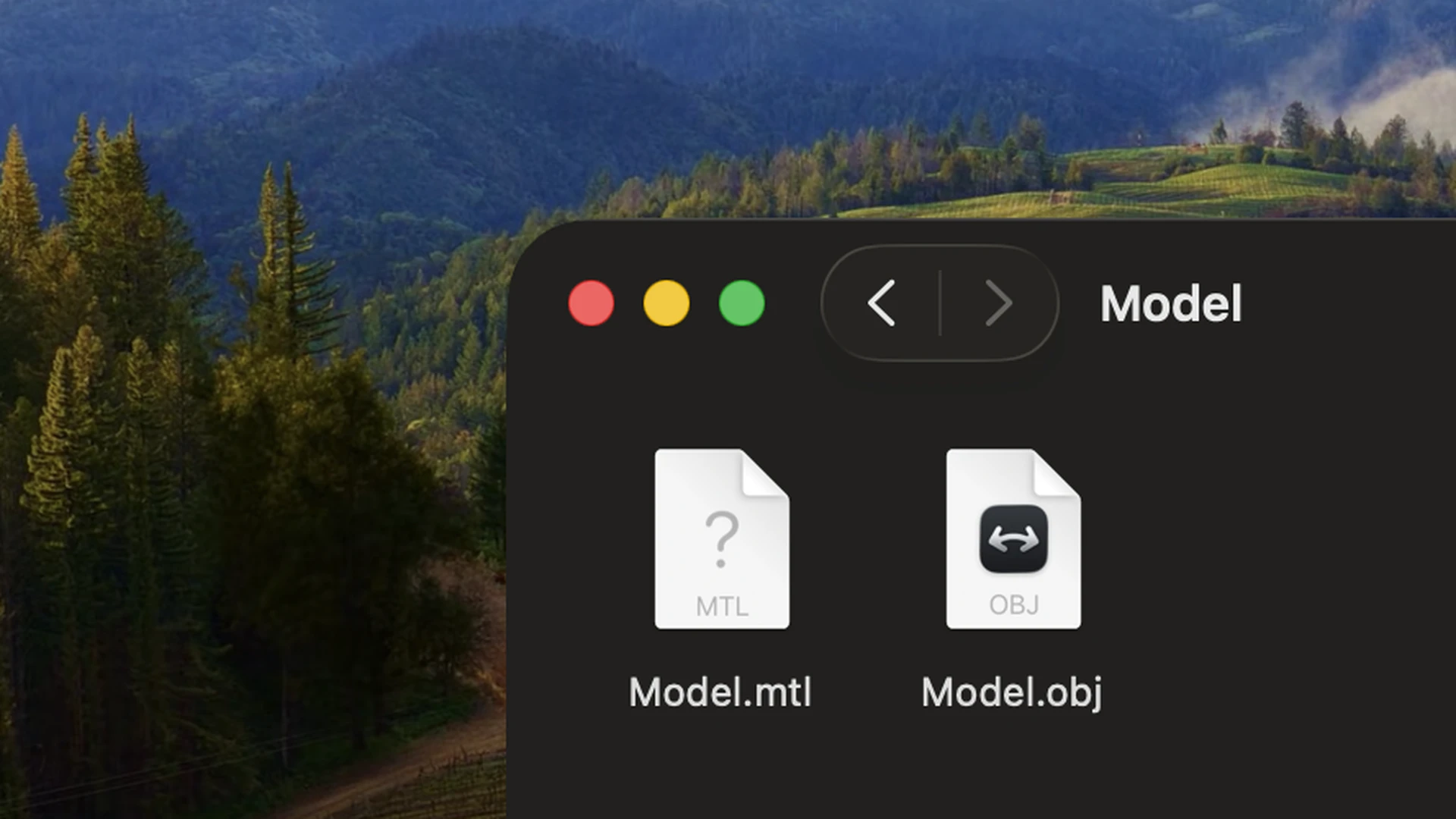
Unlike modern container formats like GLB or USDZ, an OBJ file does not store textures or materials internally. Instead, it relies on a companion file with the .mtl extension (Material Template Library) to define surface appearance. If the MTL file or its referenced texture images go missing, the model opens as an untextured grey or white mesh.
What is an OBJ file?
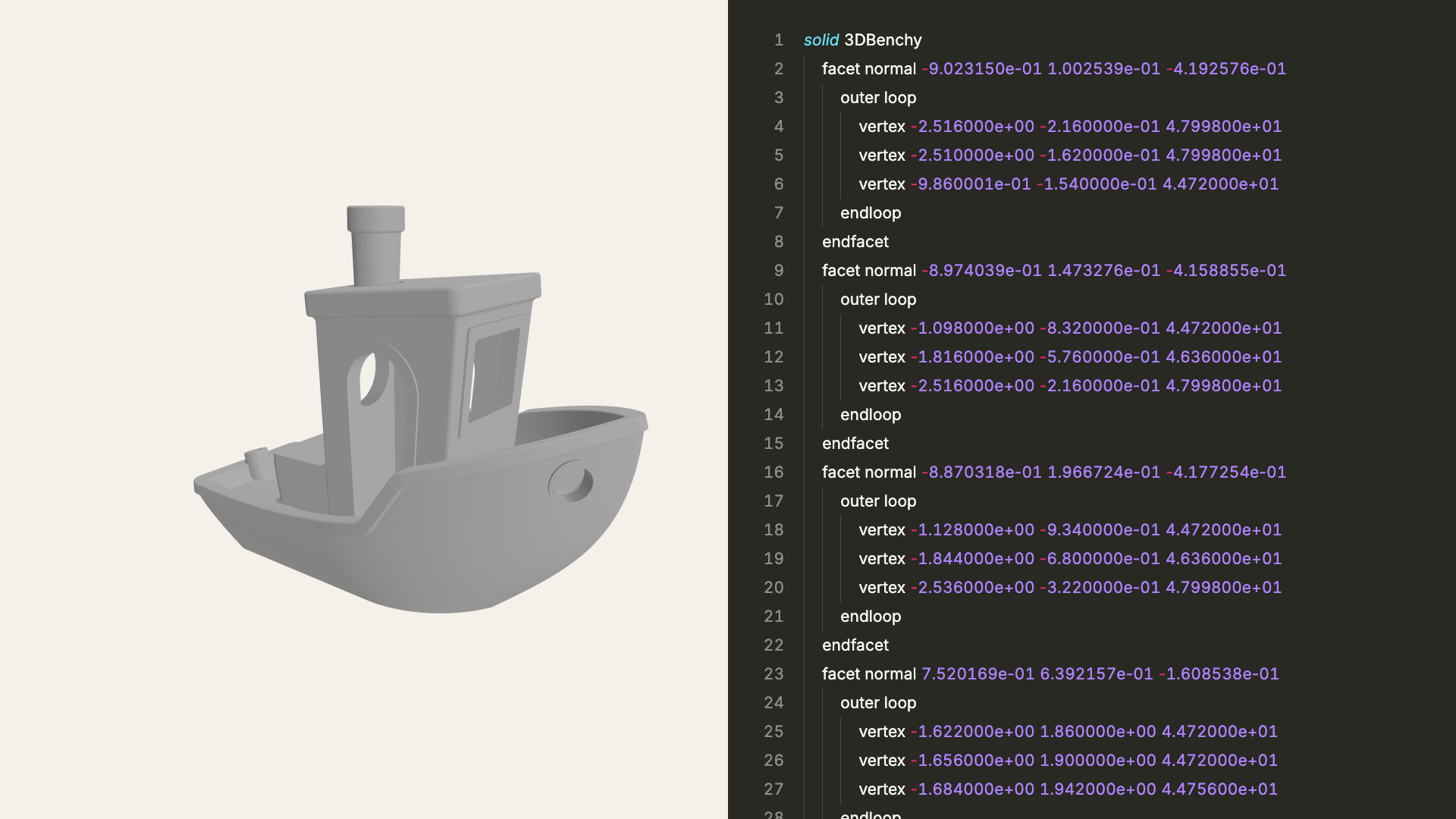
An OBJ file is a plain-text document storing the physical surface of a 3D model. You can open any .obj file in a text editor to view its raw coordinate data.
An OBJ file stores:
- Vertex coordinates: 3D points in space outlining the shape.
- Polygonal faces: Connections between points forming triangles, quads, or multi-sided polygons.
- Surface normals: Vectors determining how light bounces off curved surfaces.
- UV coordinates: Mapping data aligning image textures to surfaces.
- Object & group tags: Labels partitioning complex meshes into named parts.
OBJ files do not support animation, bone rigs, lights, or cameras. They are designed strictly for static geometry.
What is the MTL file next to it?
The .mtl file is a plain-text companion that specifies how the OBJ model's surfaces look.
Inside the MTL file, text tags define:
- Surface colors: Diffuse color, specular highlights, and opacity.
- Texture image paths: File references (such as
diffuse.png) pointing to bitmap images beside the model. - PBR properties: Modern extensions defining roughness and metallic channels.
The OBJ file links to its material library using an internal mtllib filename.mtl line. When software opens the OBJ file, it reads that tag, loads the MTL file, and applies the referenced textures.
Why do OBJ models open without textures?
An OBJ model appears plain grey or white when software cannot locate the MTL file or its referenced images:
- Missing companion files: The OBJ file was moved without its
.mtlfile or image folder. - Hardcoded absolute paths: The MTL file lists paths from another computer (such as
C:\Users\Artist\Textures\diffuse.png) that do not exist on your Mac. - Renamed files: The
.mtlfile was renamed without updating themtllibline inside the.objfile.
Fix: Keep the .obj file, the .mtl file, and all image textures in the same folder. If textures still fail to load, open the .mtl file in a text editor and shorten image paths to just the file name.
How to open and view an OBJ file on Mac
For quick casual checks: macOS Preview and Quick Look
macOS supports OBJ files natively without extra software:
- Select any
.objfile in the Finder and press Spacebar for Quick Look, or double-click to view it in Preview. - Click and drag to orbit the object, or pinch to zoom.
While Apple Preview is convenient for a quick check, it offers limited material controls and can fail to resolve textures if file paths in the MTL file are not formatted cleanly.
For technical inspection and material editing: Solidly
Solidly is a dedicated macOS 3D viewer built for Apple silicon that handles complex OBJ material libraries, reads per-vertex colors, and supports modern PBR extensions:
- Drag and drop the OBJ file onto Solidly, or choose File ▸ Open…. Grant folder access when macOS prompts so Solidly can read the companion MTL file and image textures.
- Open the Materials tab to inspect diffuse, normal, roughness, and metallic texture channels.
- If an OBJ file opened without textures, Solidly's suggested materials tool automatically scans the folder for matching image names and re-links them to the model.
- Choose File ▸ Save to write updated texture bindings directly back to the OBJ and MTL files.
Solidly also includes a Finder Quick Look extension, letting you preview textured OBJ files using Solidly's native renderer directly from the desktop by pressing Spacebar.
Best for: Fast desktop inspection, automatic texture relinking, and interactive Finder previews without launching Blender.
For full 3D modeling and conversion: Blender
When you need to remodel geometry, clean up topology, sculpt surfaces, or convert an OBJ file to GLB or USDZ, Blender is the free open-source standard:
- Launch Blender, open a new file, and choose File ▸ Import ▸ Wavefront (.obj).
- Select your file and click Import OBJ.
- Press Z and choose Material Preview to render textures.
Best for: Deep geometric editing and format conversion. Blender is a full production suite rather than a lightweight viewer, and imports assets into an active scene.
Frequently asked questions
Can an OBJ file work without its MTL file?
Yes. Geometry is stored entirely in the OBJ file. If the MTL file is missing, the model opens with its shape intact, but displays a default untextured grey surface.
Is an OBJ file better than a GLB or FBX file?
For exchanging simple static meshes across different modeling tools, OBJ is reliable and universally supported. For web 3D, mobile AR, or character animation, GLB and FBX are superior because they package animations, rigs, and PBR textures into a single self-contained file.
How do I convert an OBJ file to USDZ or GLB on Mac?
Import the OBJ file into Blender (File ▸ Import ▸ Wavefront (.obj)), verify that textures display, and export to glTF 2.0 (.glb) for the web or Universal Scene Description (.usdz) for Apple AR.
Summary
An OBJ file stores 3D surface geometry, while the companion MTL file defines materials and textures. Keeping both files and referenced textures in the same folder prevents missing texture errors. On Mac, you can preview OBJ files with built-in macOS Preview, inspect materials and re-link textures in Solidly, or remodel and convert them using Blender.