An STL file (.stl) is the standard format used across 3D printing and rapid prototyping. Created in 1987 by 3D Systems for stereolithography printers, STL remains the universal link between CAD software and 3D printer slicers.
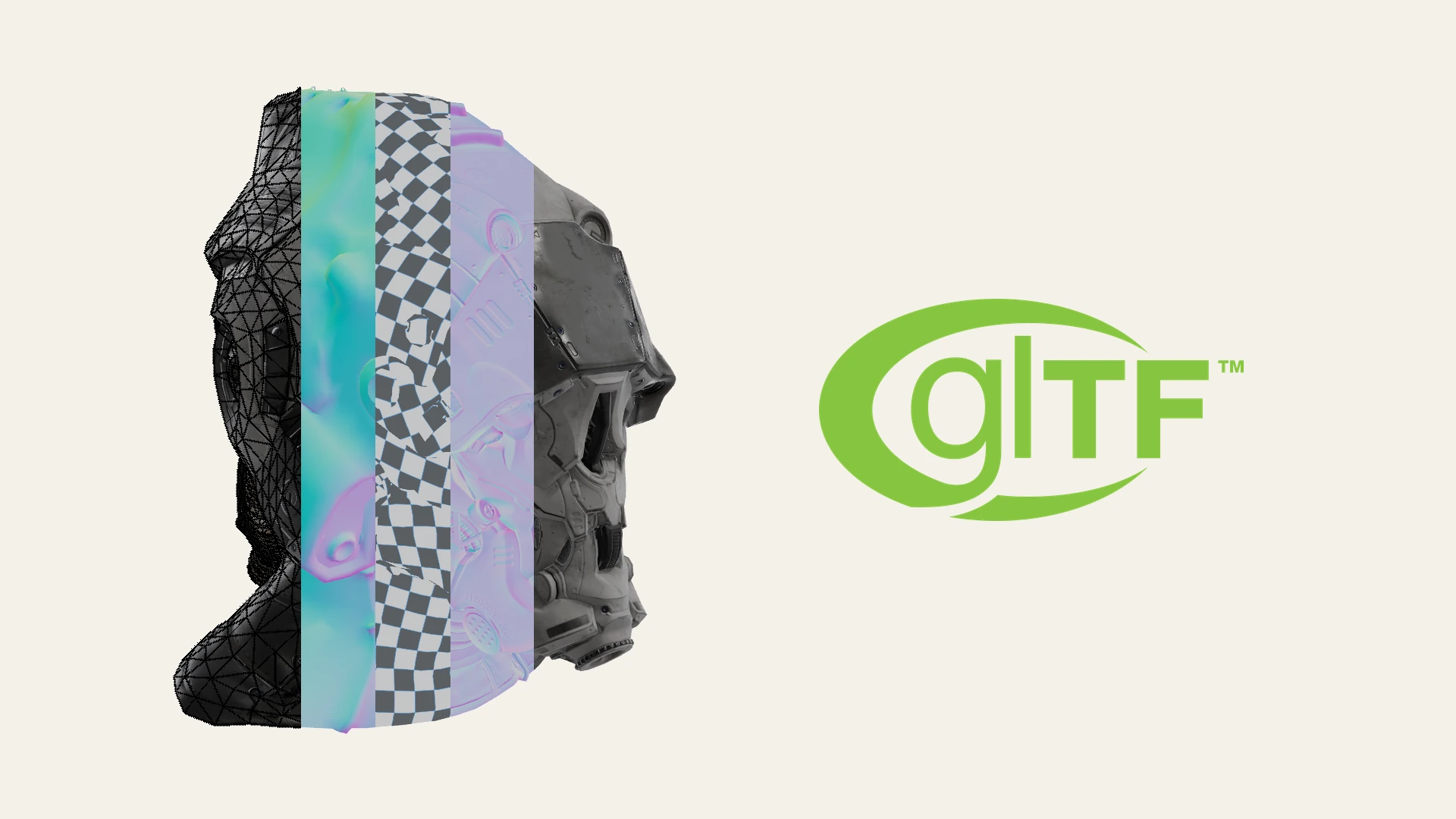
Unlike richer formats like GLB or USDZ that store colors and scene hierarchies, an STL file stores only raw surface geometry. It represents that surface as an interconnected mesh of tiny triangles, a process known as tessellation.
What does an STL file contain?
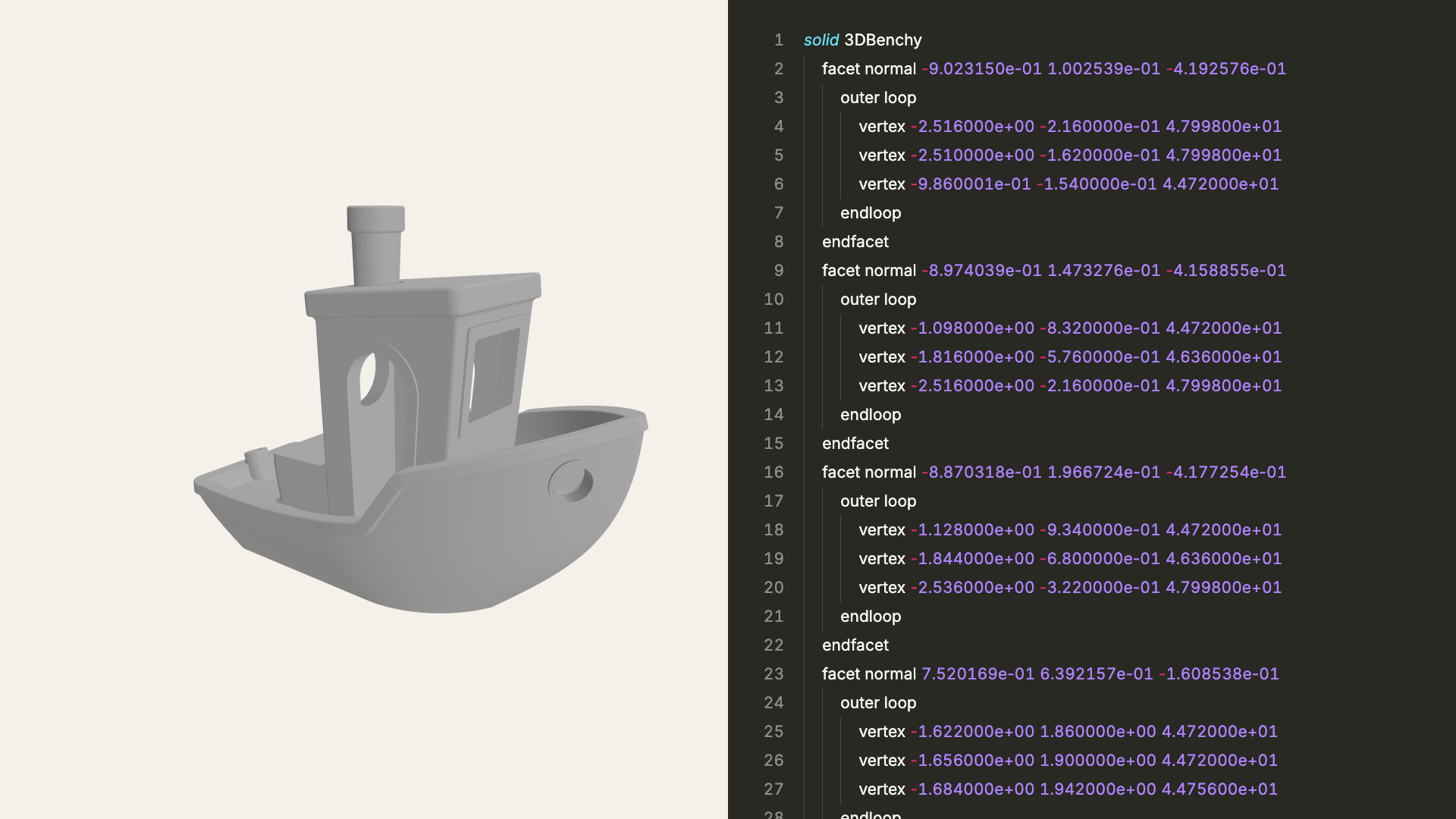
An STL file describes a 3D object as a list of triangular facets:
- Triangle vertices: Three sets of X, Y, and Z coordinates marking the corners of each triangle.
- Normal vectors: Directional vectors showing which side of each triangle faces outward.
- Unstructured mesh data: STL stores triangles independently without recording shared vertices. If adjacent triangles share a corner, those coordinates are repeated.
Because STL was built purely for manufacturing, it does not store:
- Colors or materials: Surfaces are purely geometric.
- Units of measurement: Files contain raw numbers without declaring millimeters or inches.
- Parametric curves: Curved shapes like cylinders are approximated by thousands of flat triangles.
Binary vs. ASCII STL files
STL files come in two encodings:
- Binary STL: The production standard. Coordinate numbers are packed into a compact binary format, making files much smaller and faster to load.
- ASCII STL: A plain-text format where each triangle spans seven lines of text. It can be read in any text editor, but generates files three to five times larger than binary equivalents.
STL vs. 3MF: Which should you use for 3D printing?
While STL remains the most common export format on model sites, modern alternatives address its limitations:
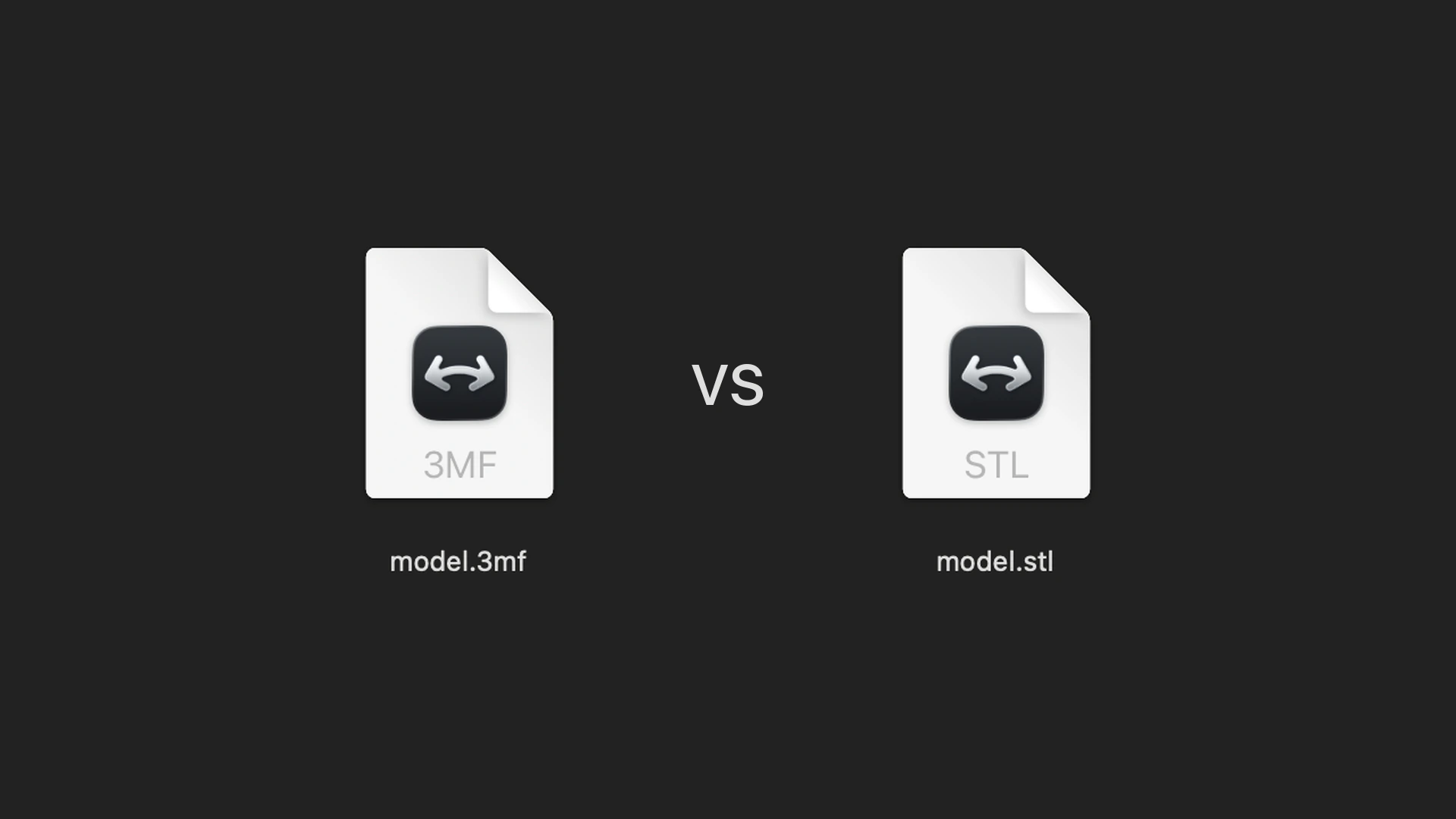
- STL: The universal standard supported by every slicer and 3D printer. Best for basic single-material prints where color and CAD metadata are not needed.
- 3MF (3D Manufacturing Format): The modern successor backed by Microsoft, Prusa, and Ultimaker. 3MF files are compressed archives that store explicit units, multi-material colors, and thumbnails, preventing scale and orientation errors.
How to open and view an STL file on Mac
For quick casual checks: macOS Preview and Quick Look
macOS supports STL files natively without extra software:
- Select any
.stlfile in the Finder and press Spacebar for Quick Look, or double-click to view it in Preview. - Click and drag to orbit the object, or pinch to zoom.
Apple Preview provides a convenient visual check, but it does not report dimensions or triangle counts, making it hard to verify print readiness.
For technical inspection and print verification: Solidly
Solidly is a dedicated macOS 3D viewer built for Apple silicon that opens large binary and ASCII STL files instantly:
- Drag and drop any STL file onto Solidly, or choose File ▸ Open….
- Open the Resources tab to read exact bounding box dimensions (width, depth, height) along the X, Y, and Z axes.
- Check triangle counts and mesh structure in the Info tab.
- If the model was exported on its side, click Auto Orient in the Info tab to rotate it upright, then choose File ▸ Save to write the correction back to the file.
Solidly also includes a Finder Quick Look plugin, letting you preview dense STL models with interactive wireframe toggles directly from the desktop by pressing Spacebar.
Best for: Fast dimension checks, triangle counts, and instant Finder previews without waiting on a slicer or modeling tool.
For slicing and manufacturing: 3D slicers
When preparing an STL file for physical 3D printing, open it in a dedicated slicer such as Bambu Studio, PrusaSlicer, or Ultimaker Cura. Slicers slice the mesh into layers, calculate supports and infill, and export G-code to the printer.
For mesh editing and repairs: Blender
When an STL file contains holes, inverted normals, or non-manifold geometry, Blender provides comprehensive cleanup tools:
- Launch Blender and choose File ▸ Import ▸ Stl (.stl).
- Select your file and click Import STL.
- Press Tab to enter Edit Mode, select all vertices with A, and choose Mesh ▸ Normals ▸ Recalculate Outside (Shift + N).
Best for: Repairing broken meshes, sculpting, and format conversion. Blender is a full production suite rather than a lightweight viewer, and imports assets into an active scene.
Why do STL files open at the wrong size?
Because STL files contain no unit metadata, software must guess how to interpret the numbers:
- Slicers typically treat coordinates as millimeters.
- Architectural software often exports in meters or inches.
Fix: If a model designed in inches opens in a millimeter slicer, it will appear roughly 25 times too small. Scale the model by 2,540 percent (or 25.4x) in your slicer to restore intended dimensions.
Frequently asked questions
Can you edit an STL file?
An STL file can be modified only as a raw triangle mesh. Because it discards parametric CAD design history (constraints, extrusions, and fillet radii), altering specific dimensions is difficult. Minor mesh sculpting can be done in Blender, but major design changes are best made in the original CAD file.
Are STL files always in millimeters?
No. STL files contain pure numbers without units. While the 3D printing industry treats them as millimeters, models exported from architectural or engineering software may use inches, centimeters, or meters.
How do I check if an STL file is 3D printable?
A 3D printable STL file must be manifold (watertight), meaning the geometry has a clear inside and outside with no holes or self-intersecting faces. Loading the file into a slicer like PrusaSlicer or Bambu Studio will automatically flag non-manifold edges.
Summary
An STL file stores the surface of a 3D model as a collection of triangles, making it the universal standard for 3D printing and prototyping. While macOS users can preview STL files with built-in macOS Preview, checking dimensions and orientation is faster in Solidly, while deep mesh repair and manufacturing preparation belong in Blender and dedicated slicers.